QUICK START · WINDOWS

From installer to first safe command.

AQORIN is Windows-first and uses PowerShell as its current execution tool. Follow this guide to install the desktop app, connect your preferred AI provider, and try AI Mode, Direct PowerShell, and bounded Agent Mode.

01 Install 02 Add provider key 03 Run a safe test
01 · INSTALL AQORIN

Run the Windows installer.

The current installer uses a standard Windows setup wizard. The screenshots below show the default installation flow and optional desktop shortcut.

01

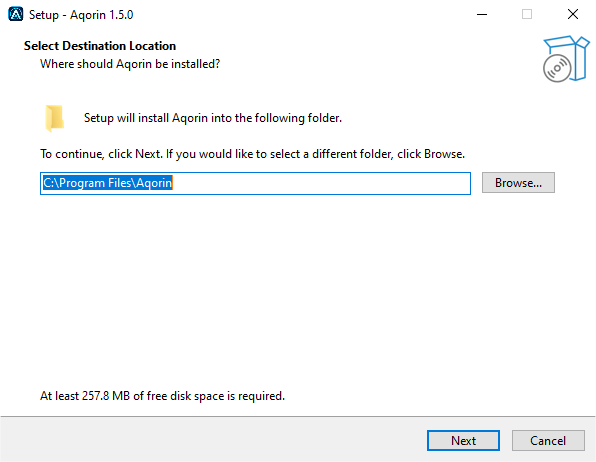
Choose the destination

The default folder is C:\Program Files\Aqorin. Keep it unless you have a reason to install elsewhere, then select Next.

AQORIN installer destination folder screen
Default installation location.
02

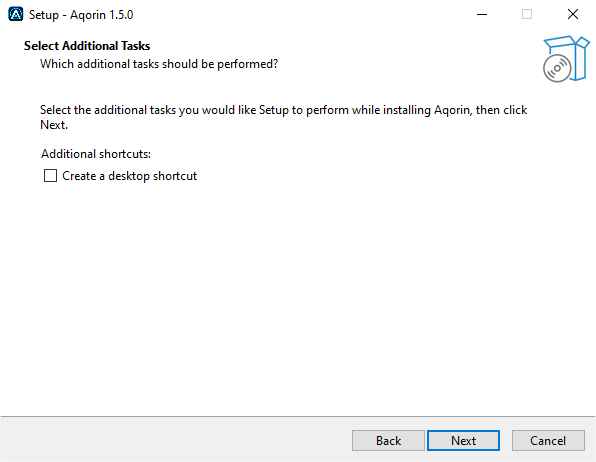
Optional desktop shortcut

Select Create a desktop shortcut if you want one. This is optional and does not affect AQORIN functionality.

AQORIN installer desktop shortcut option
Optional shortcut selection.
03

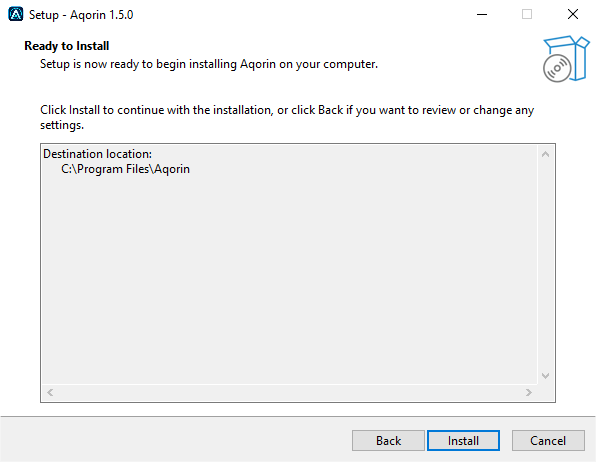
Install

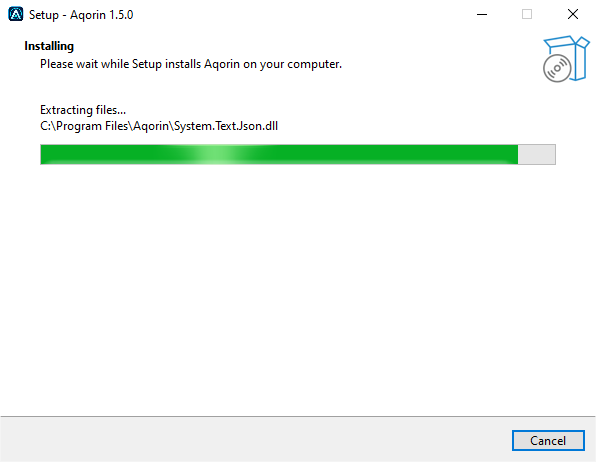
Review the destination and select Install. The wizard copies AQORIN and its packaged components to your system.

AQORIN installer ready to installAQORIN installation in progress
Confirm, then let Setup finish.
04

Launch AQORIN

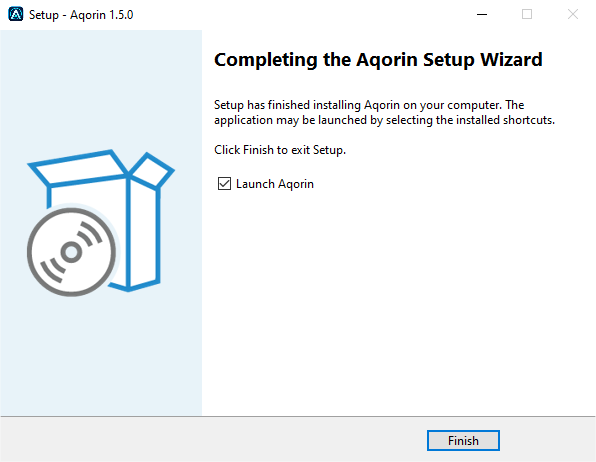
Leave Launch Aqorin selected and click Finish, or start AQORIN later from your installed shortcut.

AQORIN setup completed screen
Installation complete.
02 · CONNECT AN AI PROVIDER

AQORIN needs a provider key for AI features.

Supported providers in the current build are Mistral (the shipped default), Groq, Anthropic / Claude, Gemini / Google and OpenAI. Provider usage is billed or rate-limited by that provider; AQORIN does not bundle AI credits.

01

Open Settings

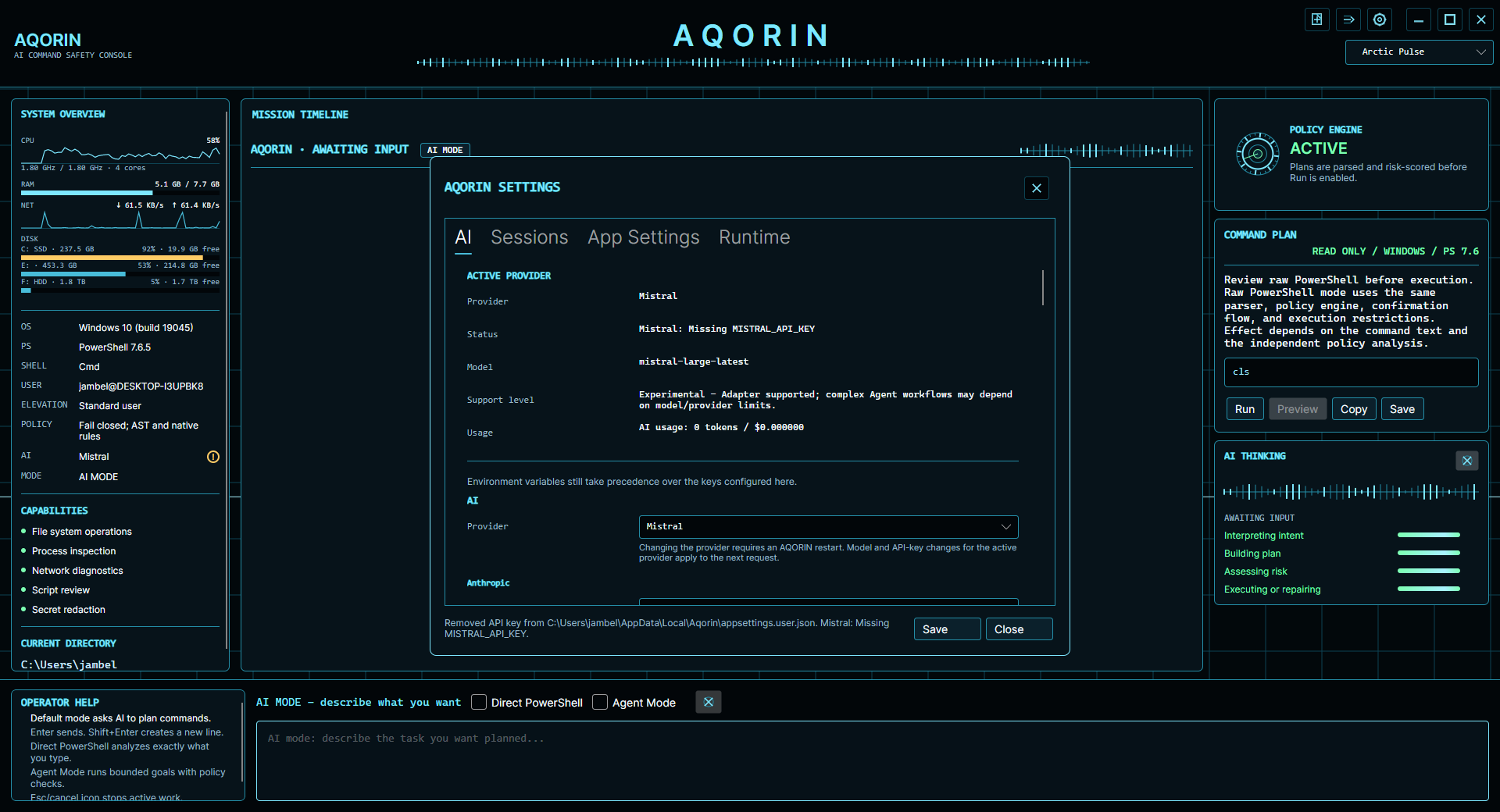
Click the gear icon in AQORIN. The AI tab shows the active provider, model, status, usage and runtime state. A missing key is shown explicitly.

ExampleMistral: Missing MISTRAL_API_KEY
AQORIN settings AI tab showing active provider and missing API key
The AI tab reports provider status.
02

Select your provider

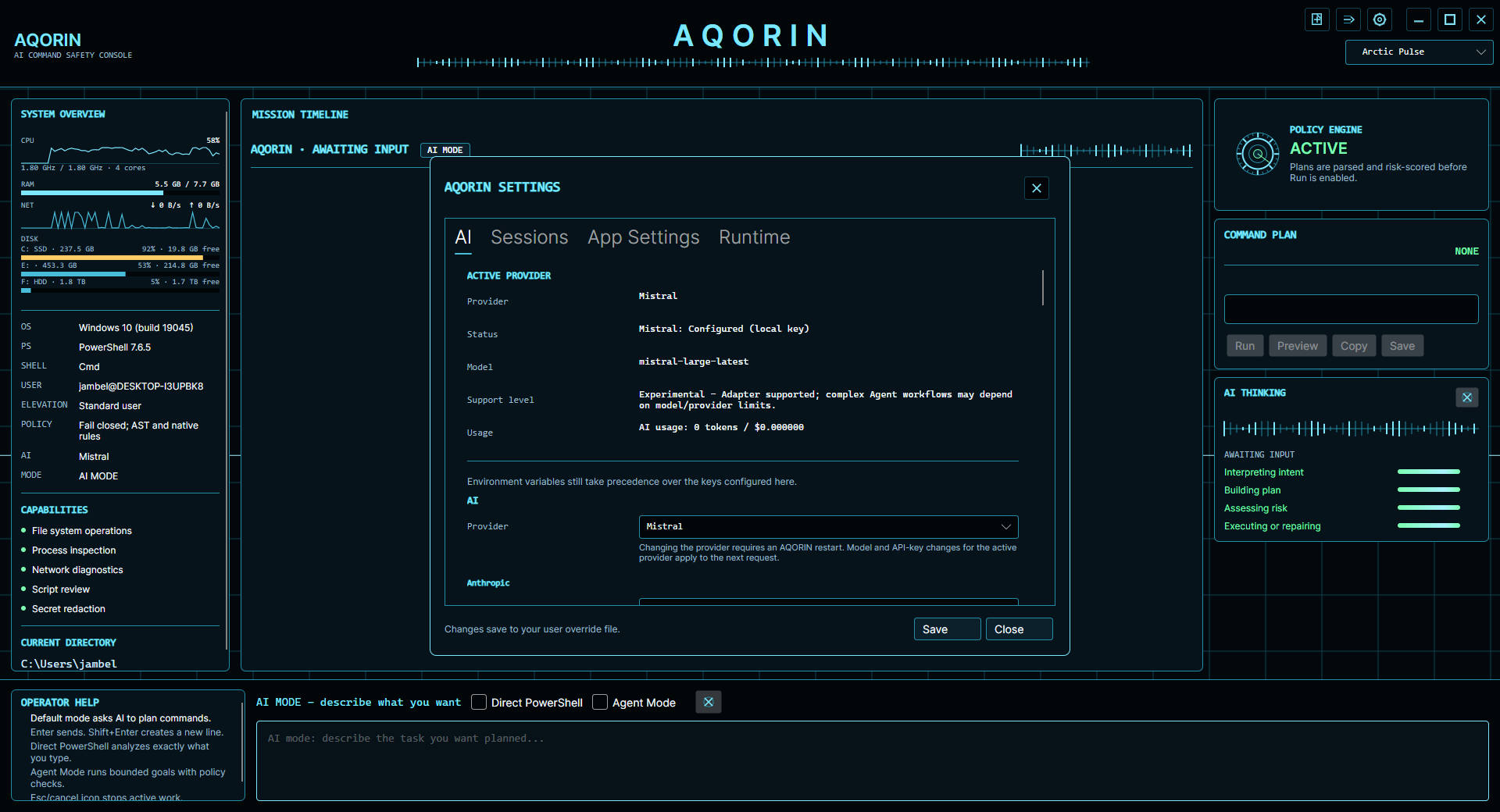
Open App Settings and choose the provider under AI → Provider. A fresh install starts on Mistral; keep it, or pick another. Save, and the next request goes to the provider you chose; no restart, for the provider, its key or its model.

AQORIN App Settings AI provider selection
Choose the active provider in App Settings.
03

Add the API key

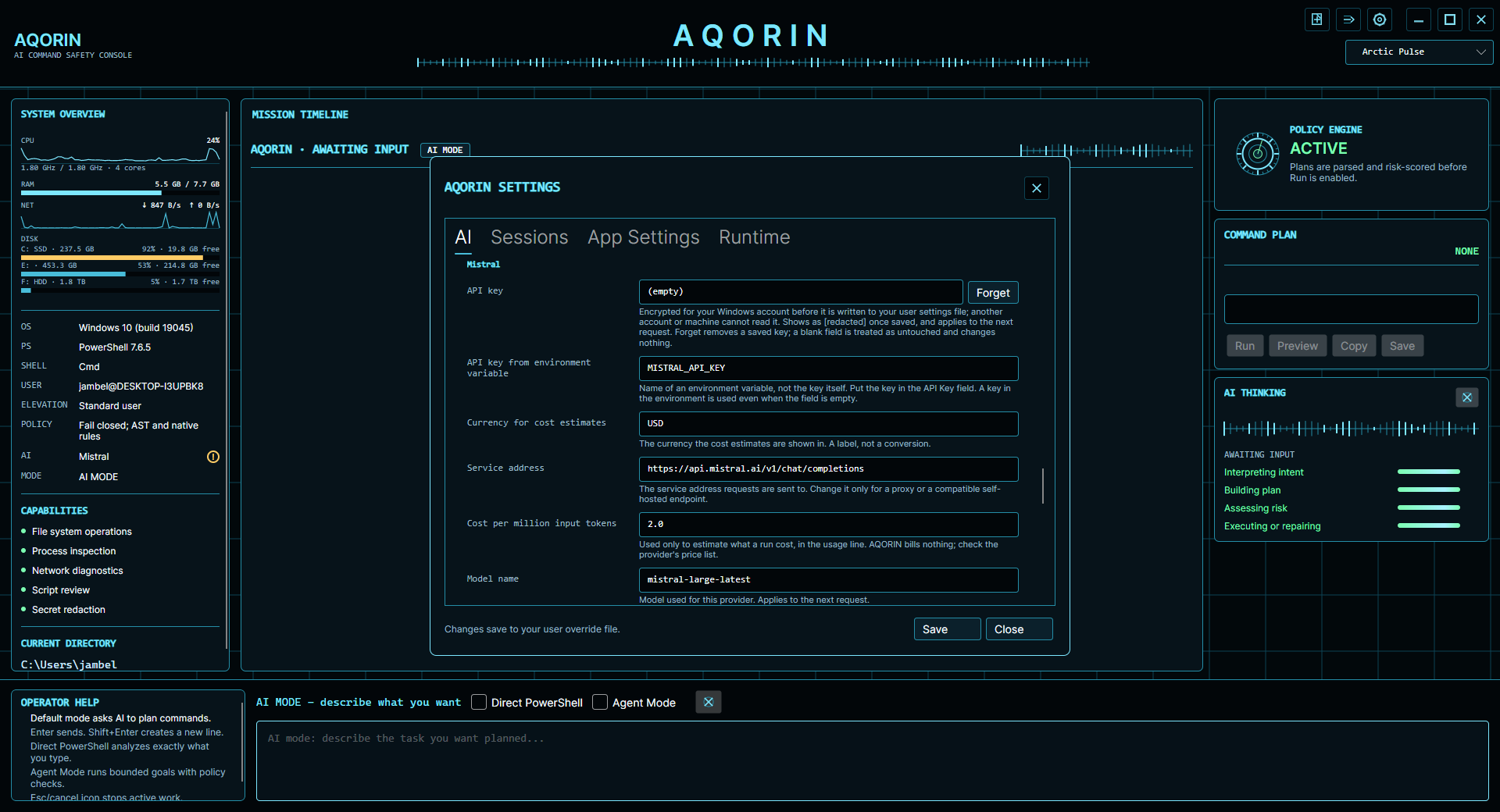
Scroll to the selected provider section and paste the actual secret into API Key. Do not paste the key into API Key Environment Variable; that field contains only the environment-variable name such as MISTRAL_API_KEY.

Select Save. Direct keys are encrypted for your Windows account before they are written to AQORIN's local user settings, and appear as [redacted] when the dialog is reopened. Forget, beside the field, removes a saved key; a blank field changes nothing.

AlternativeYou can set MISTRAL_API_KEY, GROQ_API_KEY, ANTHROPIC_API_KEY, GEMINI_API_KEY, or OPENAI_API_KEY in your environment instead. Environment variables take precedence.
AQORIN provider API key configuration fields
Paste the secret in API Key, not in the environment-variable-name field.
03 · FIRST RUN

Verify the console before doing anything complex.

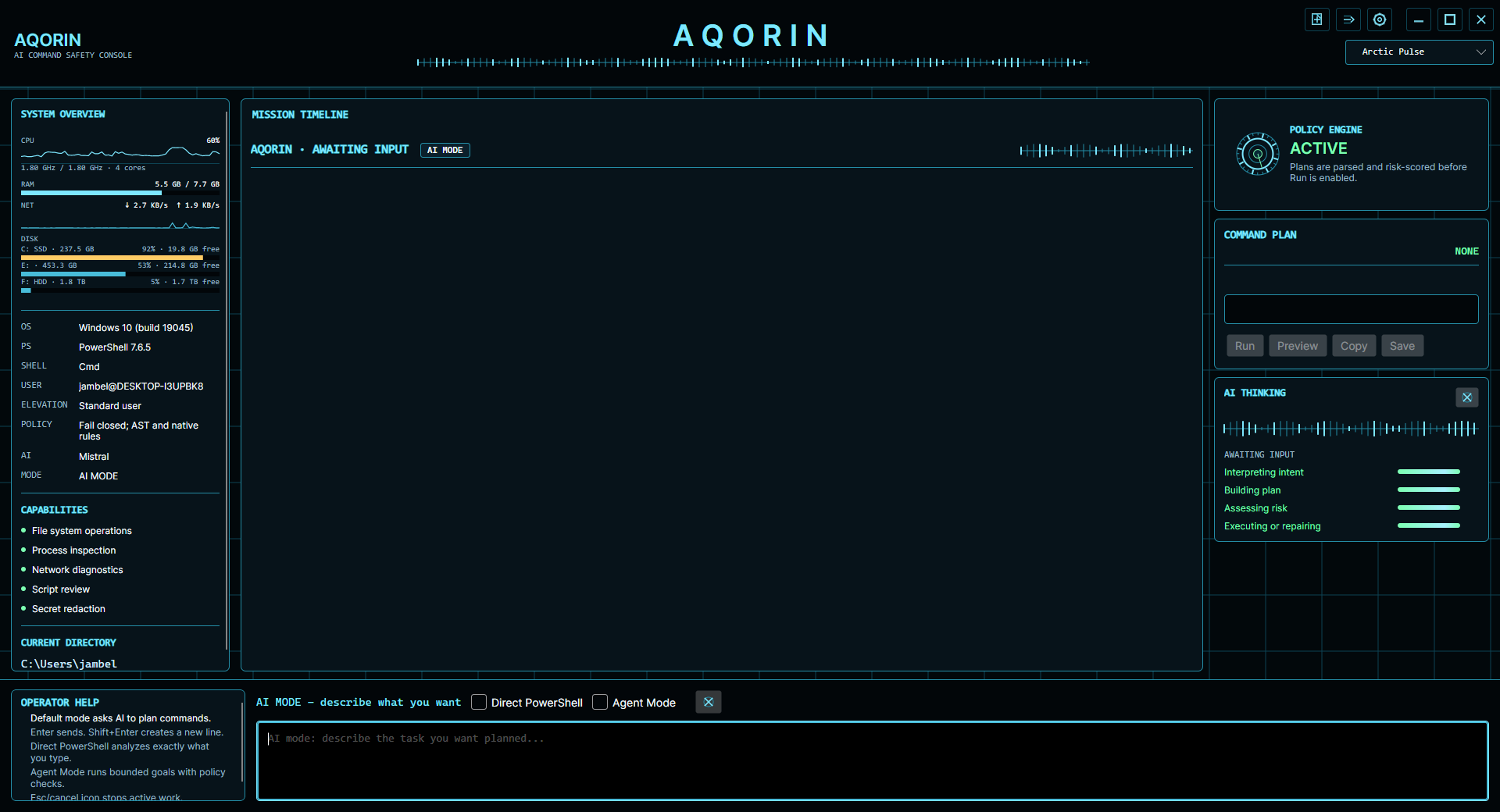
On launch, AQORIN shows the machine profile, current PowerShell/runtime information, local policy state, current directory and the selected AI provider.

AQORIN first launch screen
First launch with AQORIN awaiting input.
AI MODE

Ask a harmless question

With neither Direct PowerShell nor Agent Mode selected, try a natural-language question. Remember: this build has no web/search grounding, so answer-only responses use the selected model's knowledge and may not be live.

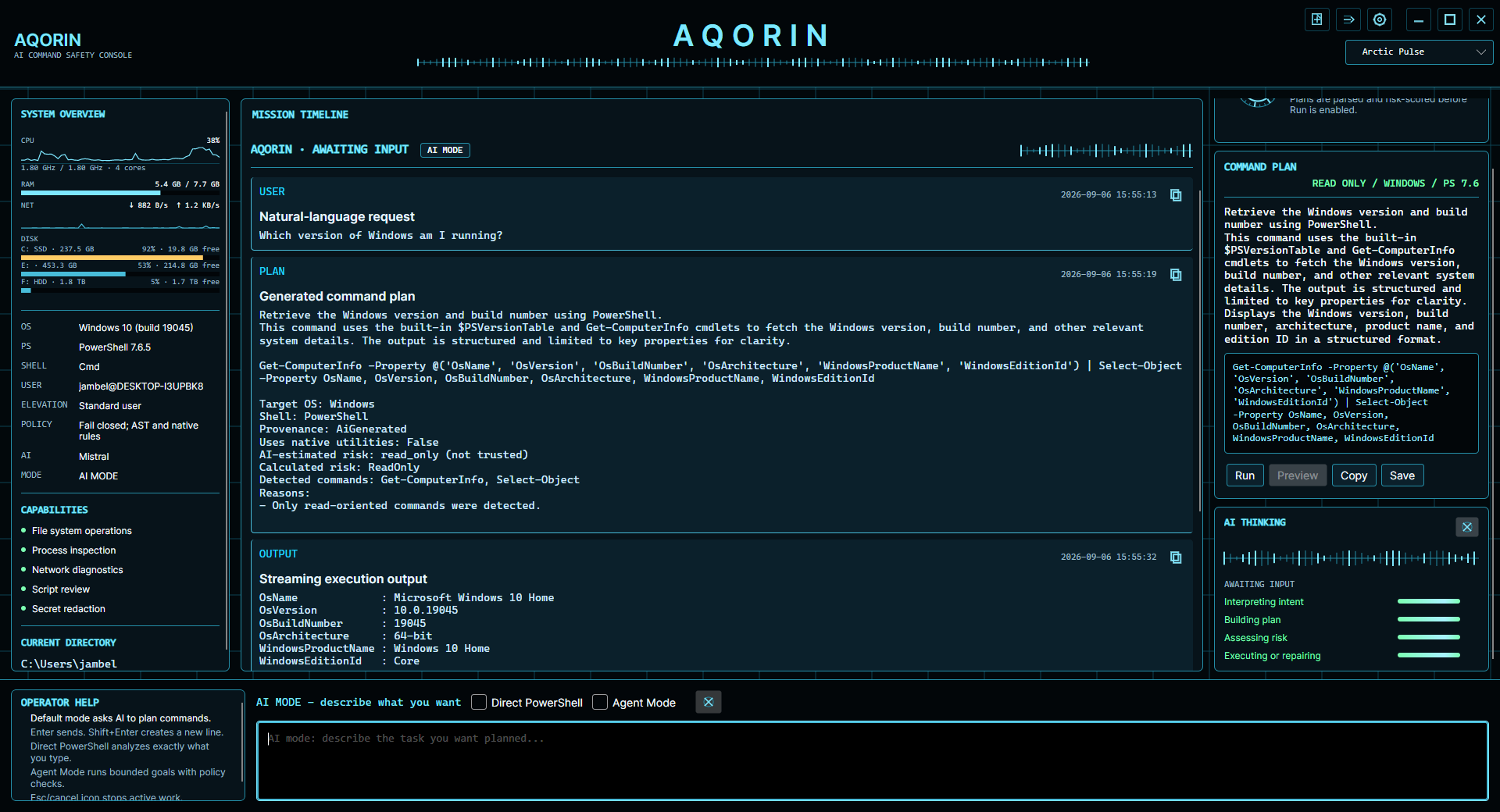
Which version of Windows am I running?
DIRECT POWERSHELL

Run a read-only command

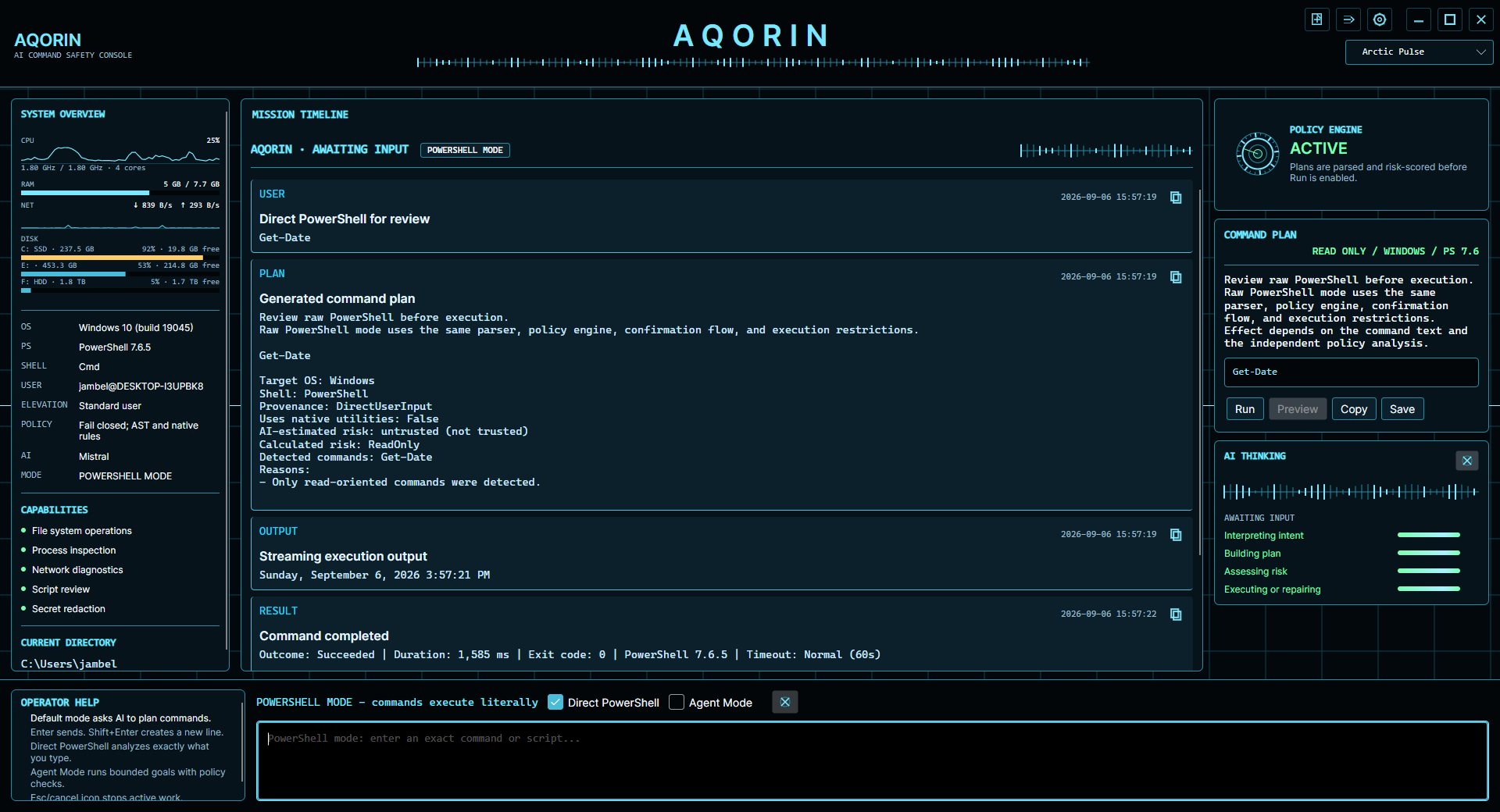
Select Direct PowerShell and enter an exact command. AQORIN still builds the review card and recalculates local risk before the command can run.

Get-Date
AGENT MODE

Give AQORIN a bounded goal

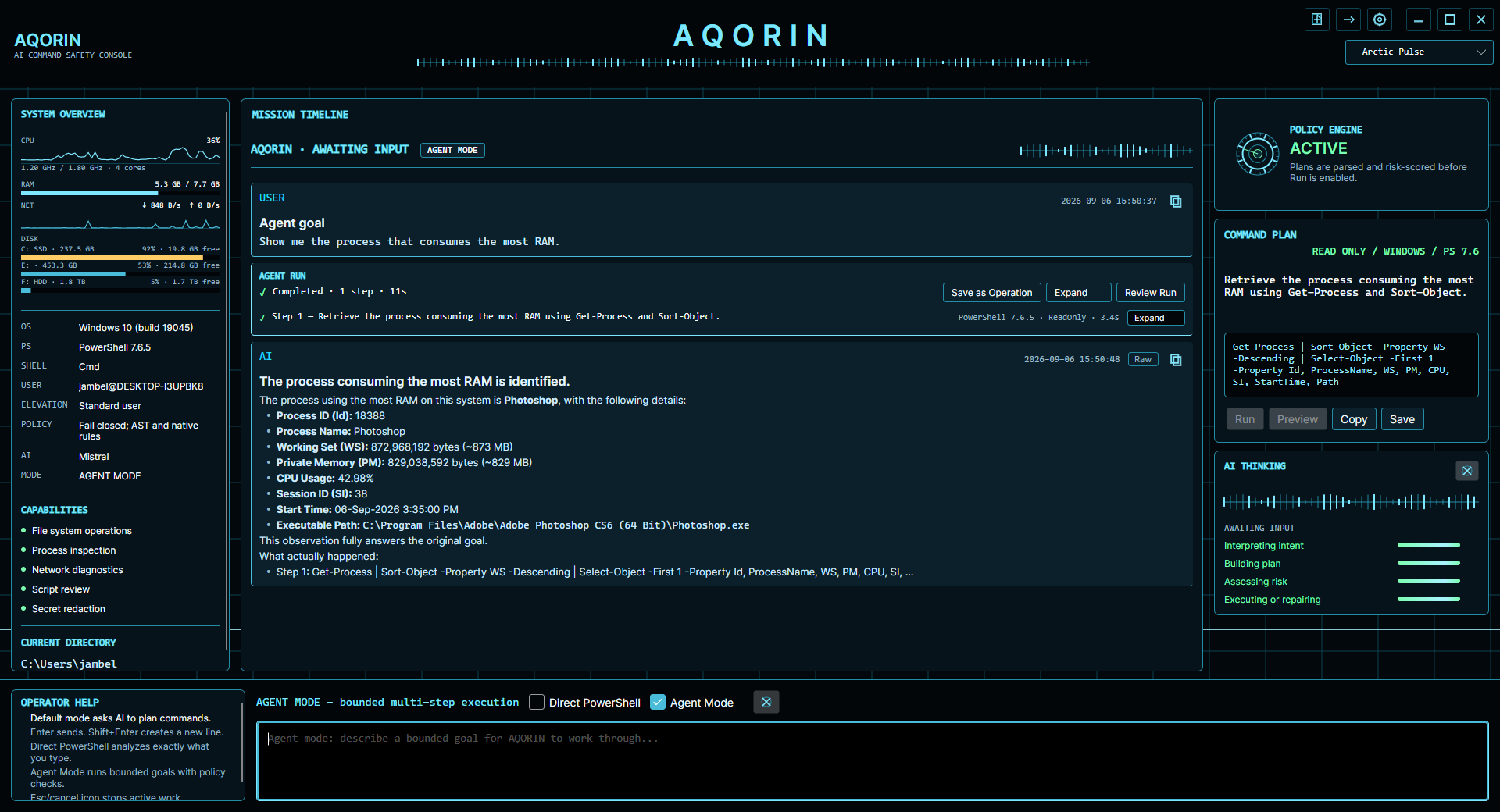
Select Agent Mode and describe the result you want. AQORIN may plan one or more bounded PowerShell tool actions, inspect each locally, run permitted actions, observe the results and adapt within configured limits.

Show me the process that consumes the most RAM.
04 · UNDERSTAND THE THREE INPUT EXPERIENCES

Choose the mode that matches what you know.

AI MODE

Ask or plan in plain language.

Use the default AI input when you want AQORIN to answer a question or propose a plan without entering a literal PowerShell command yourself.

AQORIN AI Mode answering a Windows version question
DIRECT POWERSHELL

You write the command. AQORIN supplies the safety layer.

Exact PowerShell input still passes through parsing, availability checks, local risk calculation, policy and any required authorization. Read-only examples include Get-Date and process inspection.

AQORIN Direct PowerShell Get-Date example
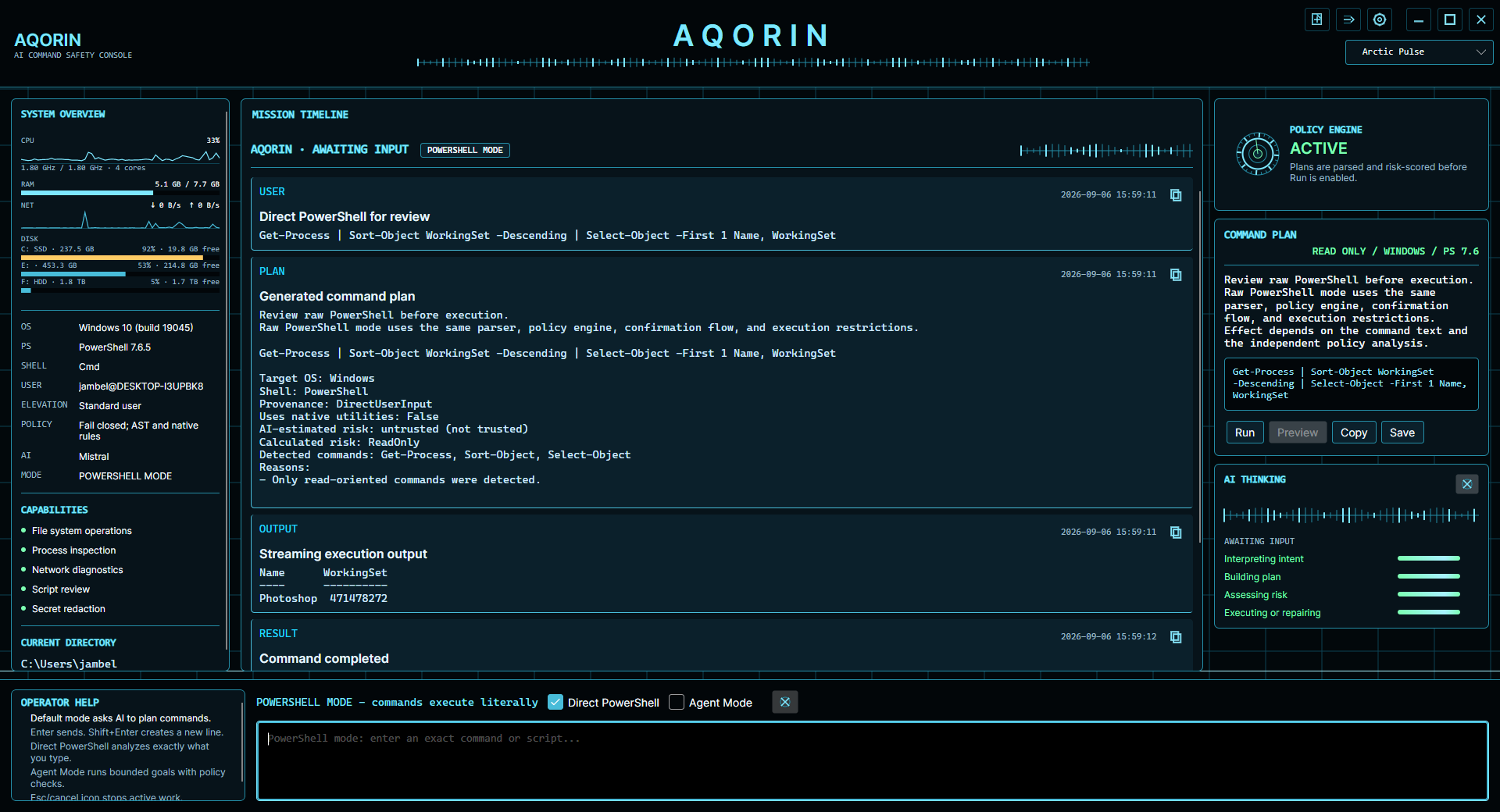
DIRECT POWERSHELL

Inspect operational data safely.

This example sorts running processes by working set and returns the largest consumer. AQORIN identifies the command as read-only before execution.

AQORIN Direct PowerShell process RAM example
AGENT MODE

Describe the outcome, not the command.

The agent converts the goal into bounded tool actions, sends each PowerShell action through the same local inspection and policy path, then uses observations to continue or produce its answer.

AQORIN Agent Mode RAM task
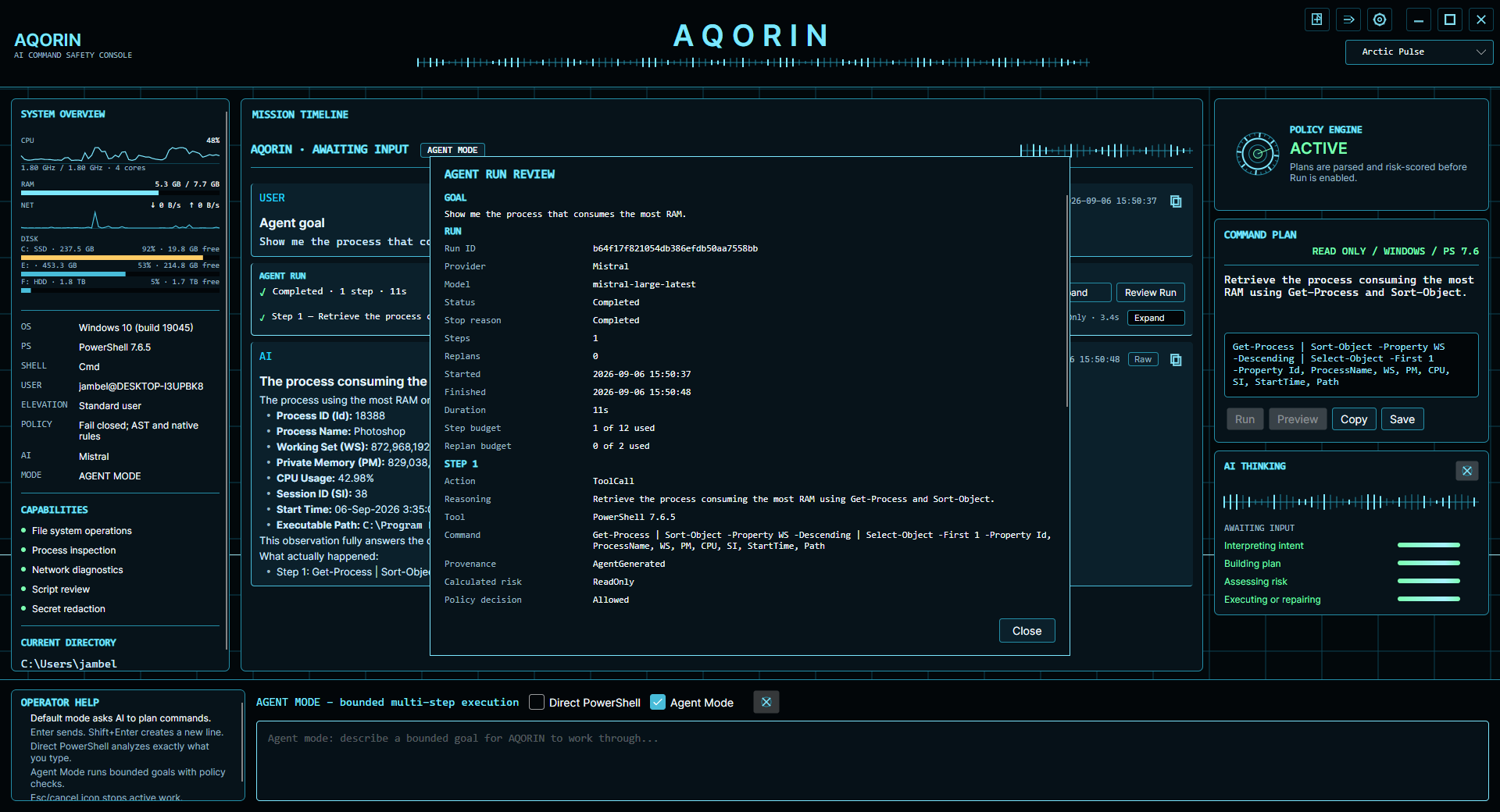
RUN REVIEW

Audit what the agent actually did.

Use Review Run to inspect provider, model, run ID, duration, step budget, command provenance, calculated risk and authorization outcome.

AQORIN agent run review window
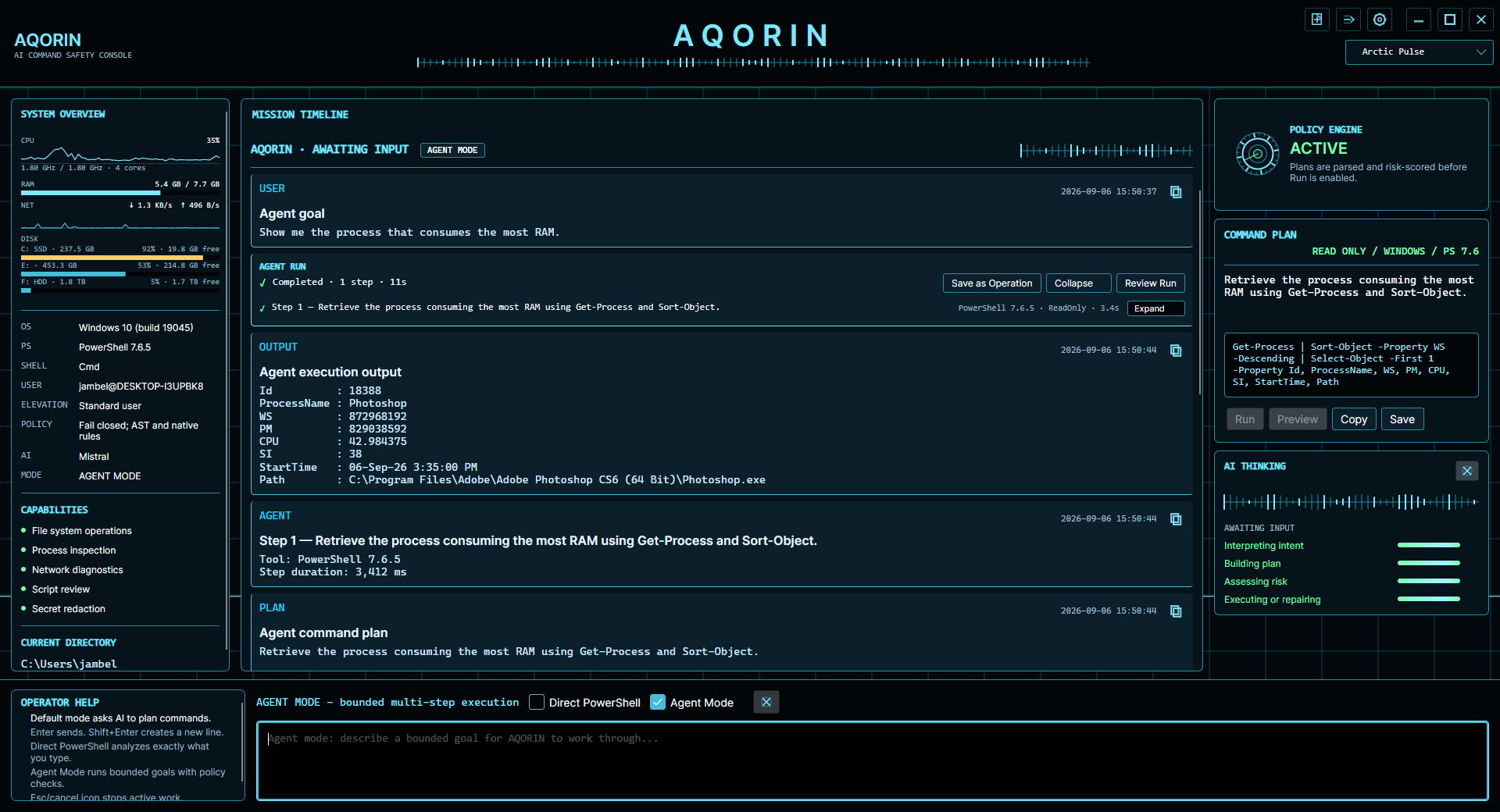
EXPAND

See the execution details.

Expanded Agent Mode exposes the goal, completed steps, tool output, generated plan and final AI answer instead of hiding the operational path behind a chat response.

AQORIN expanded agent run
05 · NOTES & TROUBLESHOOTING

Provider says “Missing … API_KEY”

Add a direct API key under Settings → App Settings → AI → Providers, or define the matching environment variable, then save.

Changed to another provider?

Nothing more to do. Provider, API key and model changes apply to the next request. The System Overview shows the provider now in use, with a mark if its key is missing.

Does AQORIN browse the web?

No. The current build has no web/search grounding tool. Current-fact questions can therefore be stale even when the selected AI provider answers confidently.

PowerShell runtime

AQORIN runs every command in a real PowerShell process. PowerShell 7 (pwsh) is recommended and used when installed; Windows PowerShell 5.1 is supported, and the main screen marks what installing PowerShell 7 would add. Anything older is refused. Commands written for another PowerShell version or operating system are caught before they run.

Administrator commands

AQORIN detects elevation requirements but does not silently elevate itself or bypass Windows authorization. Some operations may require an explicitly elevated workflow.

Safety reminder

AI-generated commands can be wrong or dangerous. AQORIN adds local inspection and policy controls, but it is not a formal sandbox or complete malware detector. Review commands and risk reasons before execution.

READY

Install. Connect. Inspect. Run.

Start with read-only tasks, learn the review flow, and enable more powerful operations only when you understand the local policy decision.

Go to download →